Sunday, January 15, 2023

Sharing 360° video?

So, you've got a 360 degree video file from your GoPro. What to do with it?
Well, share it on YouTube.

YouTube supports uploading and playback of 180° or 360° spherical videos on computers in Chrome, Firefox, MS Edge, and Opera browsers. You can also watch 180° and 360° videos on YouTube app or on the YouTube VR app available on most VR headsets.

The following guide works for MacOS.

Step 1a. Using the GoPro Player, Export the .360 file to .mov - this step utilises GoPro's World Lock & horizon Level & Mount Optimisation stabilisation processor. Settings in the screenshot below.
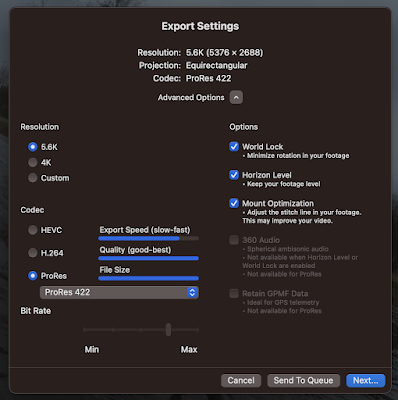
Optional Step 1b. If you have a sequence of .mov files use QuickTime to join them into one (file names number in order sequence - e.g. 01.mov, 02.mov, 03.mov) by opening the first .mov in QuickTime then dragging the remaining files onto the open QuickTime window, which then shows them in sequence and offers to join/merge them by clicking "done"), then export it to a new file .mov at 4k H.264.


Step 2. Using Handbrake export to mp4 format (do this to generate a much smaller file).

Step 3. Create a 360 degree aware version of the mp4 file via the Spatial Media Metadata Injector. This generates a file that contains 360 degree metadata so that it can be played in immersive mode by video players that support 360 degree viewing.

Step 4. Publish as normal via YouTube.

Notes:

Google's instructions here.
https://support.google.com/youtube/answer/6178631?hl=en

I followed migiguser's very good step through here.
https://www.youtube.com/watch?v=vQI3gxC9Ykc

You can find Handbrake here.
https://handbrake.fr

The Spatial Media Metadata Injector can be found on Github here.
https://github.com/google/spatial-media/releases/tag/v2.0

Sample video of a training row with OCBC on Sun 15 Jan 2023 - the second upstream run. 
https://youtu.be/8E6TcQLYxpQ

This is a 360° video. Open the ink using a PC with one of the following web browsers: Chrome, Firefox, MS Edge, or Opera. You can also watch 180° and 360° videos on the YouTube app or on the YouTube VR app available on most VR headsets.

Even if just using a web browser (see above) you should be able to pan around the scene (i.e. see stuff that is off-screen and different points of view by using the pan button in the top left of the viewer. You should be able to rotate the view the WASD keys. You can also swipe through a video by clicking and dragging through the space.

Tuesday, January 10, 2023

Text trimming in Excel

For example, to extract text to the right of the first space character (" ") in a cell containing "first-name second-name".

 =RIGHT(B2, (LEN(B2) - FIND(" ", B2)))

Monday, January 9, 2023

Homebrew setup

Before you run Homebrew you need to install the MacOS Command Line Tools that come in Xcode. To do this, open the App Store, search for and install Xcode. This can take upwards of 30' or more.

The Homebrew web site has further information.

 https://brew.sh/

To install Homebrew from the command prompt (e.g. Terminal) - you will need sudo permission.

/bin/bash -c "$(curl -fsSL https://raw.githubusercontent.com/Homebrew/install/HEAD/install.sh)"
==> Checking for `sudo` access (which may request your password)...
Password:
==> This script will install:
/opt/homebrew/bin/brew
/opt/homebrew/share/doc/homebrew
/opt/homebrew/share/man/man1/brew.1
/opt/homebrew/share/zsh/site-functions/_brew
/opt/homebrew/etc/bash_completion.d/brew
/opt/homebrew
/etc/paths.d/homebrew

The install script will take 10' or so to download packages, install and configure as per...

==> Next steps: n.b. change <loginid> to your ID
- Run these commands in your terminal to add Homebrew to your PATH:

    echo >> /Users/<loginid>/.bash_profile
    echo 'eval "$(/opt/homebrew/bin/brew shellenv)"' >> /Users/<loginid>/.bash_profile
    eval "$(/opt/homebrew/bin/brew shellenv)"

- Run brew help to get started
- Further documentation:
    https://docs.brew.sh

- two commands to add Homebrew to your PATH in ~/.zprofile:


echo 'eval "$(/opt/homebrew/bin/brew shellenv)"' >> ~/.zprofile
eval "$(/opt/homebrew/bin/brew shellenv)"

---------------------

How to install graphviz (not via https://graphviz.org)

brew install graphviz

which dot
/opt/homebrew/bin/dot

Saturday, August 27, 2022

AI art by MidJourney and others...

First, read the article "AI-generated art illustrates another problem with technology" by John Naughton  on the Guardian (20 Aug 2022).

So what credit source acknowledgement is required if you want to use AI art generated by MidJourney?
Image Credits: MidJourney under a CC BY 4.0 license.

The important bit, licensing terms as of today (27 Aug 2022) as excerpted from https://midjourney.gitbook.io/docs/billing

Commercial Terms
You basically own all Assets you create using Midjourney’s image generation and chat services. This does not apply if you fall under the exceptions below. See Terms of Service for full details.
Exception 1: Non-Paid Members License Terms
If you are not a Paid Member, Midjourney grants you a license to the Assets under the Creative Commons Noncommercial 4.0 Attribution International License (the “Asset License”).

"...which means that you’d be able to use the images as long as you don’t sell them or make money off them, and as long as you give credit (“attribution”) to Midjourney." Haje Jan Kamps (@Haje TechCrunch 09 Aug 2022)

So there you have it. For more thoughts on the implications for using AI 'art' in the article on TechCrunch (link - https://techcrunch.com/2022/08/09/copyright-law/)


To view your collection of generated images use your discord login to https://www.midjourney.com/app/ 

Some starting 'prompts'

/imagine sketch navigation chart islands monsters treasure old 
(produced link)

Refresh 
(produced link)

Check MidJourney's User Manual for tips on prompts
And look for others' examples on the Midjourney Discord.
"monastary carved into a massive tree, ancient asian mountain monastary, red roofs, extremely detailed, symmetrical, proportionate, octane render, unreal engine 5 --ar 1024:2048 --q 3"

An example of a game developer that uses MidJourney generated art (link)

"sailing ship and "angry kraken" ocean storm"

AI art generators
Midjourney - Runs via Discord.
Hotpot is an AI driven multi-service platform, used for graphics, writing, image correction, and more.
NightCafe bills itself as a premium creation platform with a print on demand offering.
DALL·E. - First get on the waitlist - if/when you are approved then link to your Discord
DeepAI - 

AI generated audio noise mimicking music...
OpenAI's Jukebox
TechCrunch article on how OpenAI and other AI audio generators are dealing with copyright and licensing (link)
A useful article on the legal implications (link)
And An OpenAI researcher stating on Twitter that they (OpenAI) are not claiming copyright over the samples generated, and that such works may be publishable under copyright Fair Use provisions (link).

The OpenAI software is made available under a non-commercial license... 
...but what about the works generated? (audio output and lyrics)

The last section is the funniest - in the style of Katy Perry "Open A. I., Open A. I., on a mission to build safe A. I."
https://jukebox.openai.com/songs/788154229
** best https://jukebox.openai.com/songs/787872244

Thursday, January 6, 2022

Simple halftone image generator

 https://www.picturetopeople.org/image_effects/photo-halftone/halftone-image-generator.html


Friday, August 21, 2020

Simple stop motion video using stills and Final Cut Pro

For a simple stop motion video using stills and Final Cut Pro just follow the steps on Instructables

https://www.instructables.com/id/Create-a-movie-from-stop-motion-frames-in-Final-Cu/

Thursday, August 13, 2020

The power of ffmpeg

Editing Recordings (on Mac OS)

ffmpeg comes with homebrew https://brew.sh/. Install brew and then use brew to install useful packages.
brew install ffmpeg
or if you have a python distribution installed you can use pip
pip install ffmpeg
The zeroth step... you probably should install Xcode (sadly Xcode is massive and uses up to 20GB of disk).

The man page contains descriptions of commands
$ man ffmpeg

Example: Extract audio from a video (mp4) quicktime file.

Using QuickTime Player. File > Export
From the menu choose Audio Only. Name the file and click Export. The file will be exported as a 256kbps AAC audio file (m4a). A selection converting mp4 or m4a files to mp3 from the command line...
ffmpeg -i input.mp4 output.mp3

ffmpeg -i input.m4a output.mp3 
m4a is an Apple format, lossless compression. mp3 is the most common audio format, lossy compression.

Example: Converting and manipulating video formats like mov and mp4

Screen capture using QuickTime and manipulate with Trim (in QuickTime) and ffmpeg (from the command line)
ffmpeg -i EpicKartJump.mov EpicKartJump.mp4
Is it possible to speed up a video? https://video.stackexchange.com/questions/18469/is-it-possible-to-speed-up-a-video-using-handbrake
ffmpeg -i EpicKartJump.mov -vf "setpts=(PTS-STARTPTS)/10" -crf 18 EpicKartJumpFast.mp4
Example (best): How to join an audio file (mp3) with a video file (mp4)?
ffmpeg -i video.mp4 -i audio.mp3 -c:v copy -c:a copy output.mp4 

Note: the syntax is -i for input file, -c:v copy; for convert video, in this case 'copy' means no stream format conversion, it just copies; -c:a copy; and to convert audio -c:a aac would convert the audio file to aac format.

Example: To remove audio track from mp4 video file

ffmpeg -i input_file.mp4 -an -vcodec copy output_file.mp4

Example (?): To join multiple files into a single file (can be audio or video)

ffmpeg -i "concat:audio1.mp3|audio2.mp3|audio3.mp3" -c copy output.mp3

or 

ffmpeg -f concat -safe 0 -i FileList.txt -c copy mergedVideo.mp4 

Where FileList.txt contains paths in the local dir, something like:

file 'FirstFileInSequence.mp4'
file 'SecondFileInSequence.mp4'

Example: To speed/timelapse the video

ffmpeg -i input.mp4 -filter:v "setpts=0.5*PTS" output.mp4
Example: To slowmo the video
ffmpeg -i input.mp4 -filter:v "setpts=2*PTS" output.mp4
Example: To add blur effect to video
ffmpeg -i intro.mov -vf "boxblur=5:1" intro-blur.mov

Example: ffmpeg can make mp4 smaller by varying the Constant Rate Factor, using:

ffmpeg -i $infile -vcodec libx264 -crf 23 $outfile

Example (best): fmpeg can make mp4 smaller by changing the video screen-size (for example to half its pixel size), using:

ffmpeg -i $infile -vf "scale=iw/2:ih/2" $outfile

Sharing 360° video?

So, you've got a 360 degree video file from your GoPro. What to do with it? Well, share it on YouTube. YouTube supports uploading and pl...